Linking your Google products to your Google Ads account allows us to share data between platforms, giving you better reporting, smarter bidding, and a more complete picture of how your advertising is performing. This guide walks you through linking each product step by step.
Before you start: You will need admin access to both your Google Ads account and the Google product you are linking. All linking is done from within Google Ads using the Data Manager. You only need to link the products you actively use — if you don't have a YouTube channel or Google Business Profile, for example, you can skip those sections entirely.
Accessing the Data Manager
The Data Manager is the central place in Google Ads where you connect all of your Google products.
- Sign in to your Google Ads account at ads.google.com
- Click Tools in the top navigation bar (the spanner icon)
- Select Data Manager
- Click the + Connect Product button
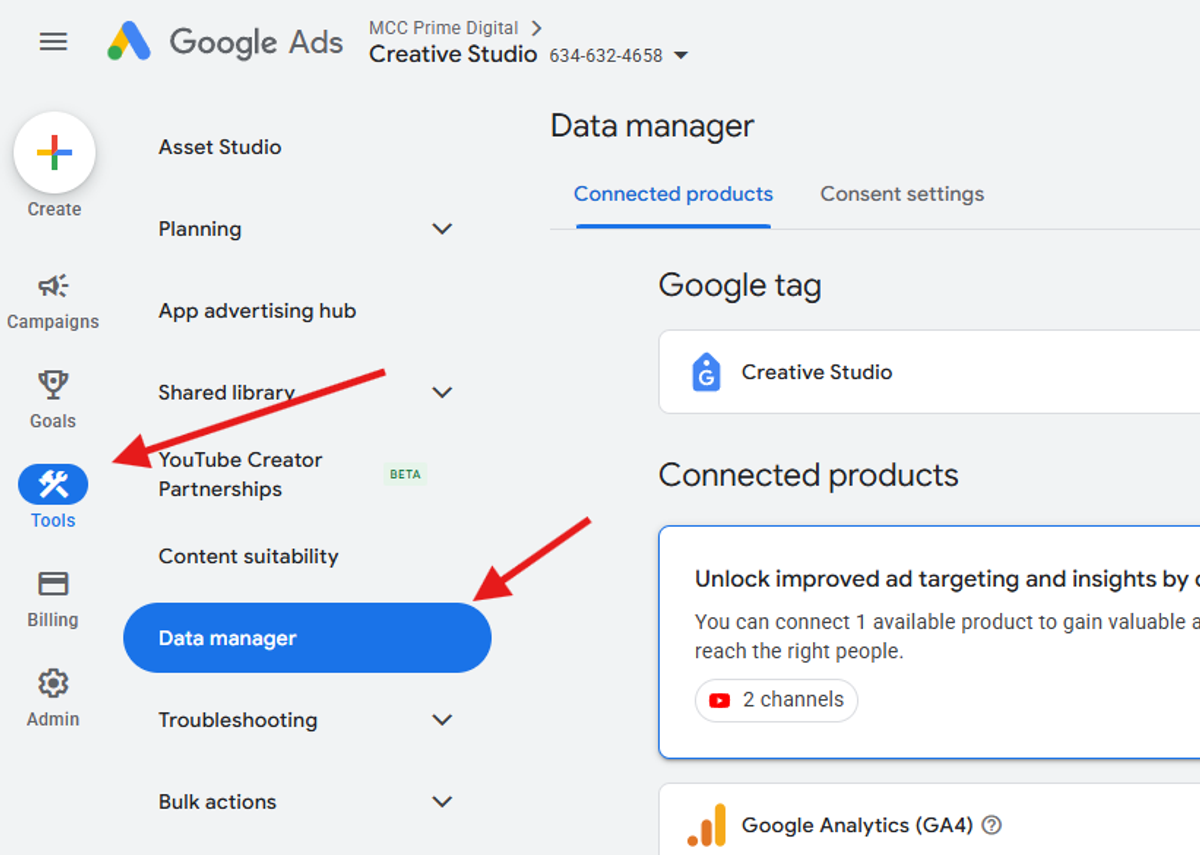
You will see a list of Google products available to link. Follow the relevant section below for each product you need to connect.
1. Link Google Analytics
Linking Google Analytics allows conversion data, audience lists, and website engagement metrics to flow into Google Ads.
- In the Data Manager, click + Connect Product
- Select Google Analytics (GA4) from the list
- Choose the Google Analytics property you want to link
- Review the data sharing settings and click Confirm
Requirement: You must have Editor access (or higher) on the Google Analytics property. If you do not see your property listed, check that you are signed in with the correct Google account.
2. Link Google Business Profile
Linking your Google Business Profile enables location extensions in your ads, showing your business address, phone number, and directions alongside your search ads.
- In the Data Manager, click + Connect Product
- Select Google Business Profile from the list
- Choose the business profile you want to link
- Click Confirm to complete the link
Requirement: You must be an Owner or Manager of the Google Business Profile. If your profile is managed by someone else, ask them to either complete this step or add you as a manager.
3. Link YouTube
Linking your YouTube channel allows you to use video engagement audiences for remarketing and enables video action campaigns to drive conversions.
- In the Data Manager, click + Connect Product
- Select YouTube from the list
- Sign in to the Google account that owns the YouTube channel
- Select the channel you want to link and click Confirm
Requirement: You must be the Owner of the YouTube channel. If your channel is managed via a Brand Account, ensure you are signed in with the account that has ownership access.
4. Link Google Search Console
Linking Search Console lets you see your organic search performance data alongside your paid search data within Google Ads, helping you identify keyword opportunities and avoid gaps in coverage.
- In the Data Manager, click + Connect Product
- Select Search Console from the list
- Choose the website property you want to link
- Click Confirm to complete the link
Requirement: You must be a verified owner of the Search Console property. If you have not yet verified your site, visit search.google.com/search-console to set this up first.
Need Help?
If you run into any issues or do not have the required access level for any of the steps above, you can grant us admin access to your Google Ads account and we will take care of the linking for you.
To grant admin access:
- In Google Ads, go to Admin > Access and security
- Click the + button to add a new user
- Enter our email address: ads@primedigital.co
- Set the access level to Admin
- Click Send invitation
Once we have access, we will complete the linking and let you know when everything is connected.