This guide walks you through giving Prime Digital partner access to your Meta assets so we can manage your advertising end-to-end. It takes about 5 minutes.
Before you start: you'll need to be logged in as someone with Full control of your business portfolio (formerly Business Manager). If you're not sure, check Business settings → Users → People and look for your name.
Good to know: partner access never transfers ownership. Your business keeps full ownership of every asset, billing stays on your payment method, and you can revoke our access at any time with one click.
Step 1 — Send us your Business Portfolio ID
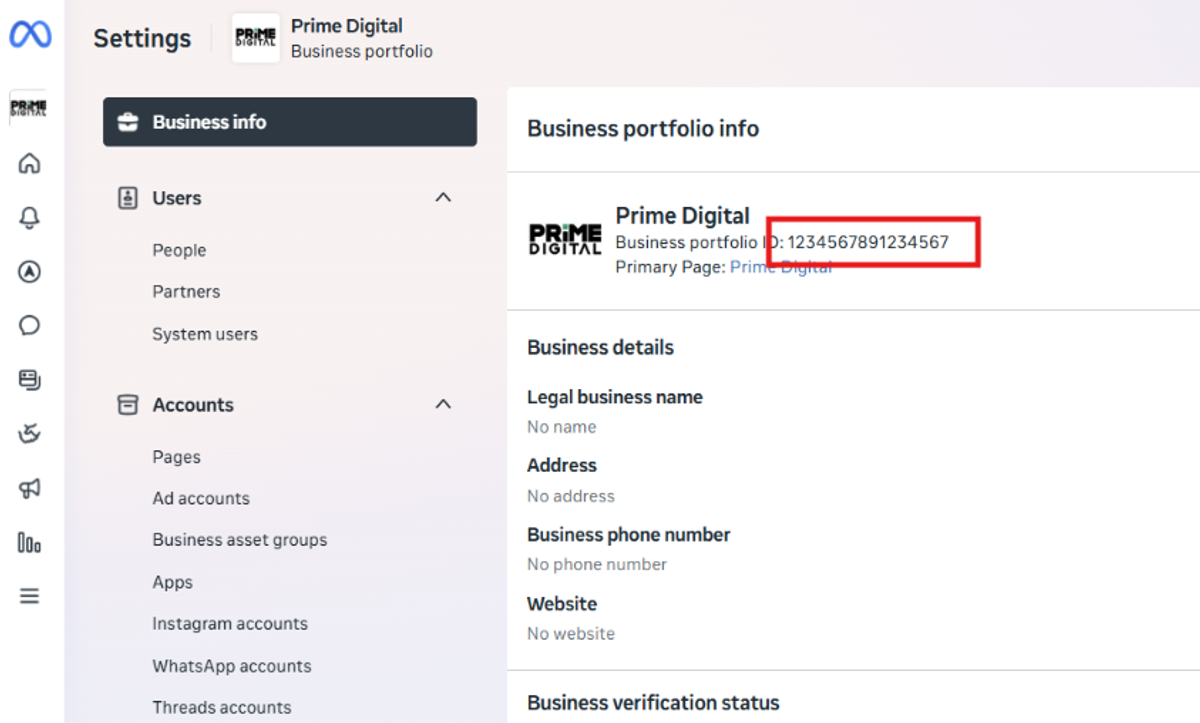
Go to business.facebook.com/latest/settings/business_info (Or: go to business.facebook.com → Settings at the bottom of the left sidebar → Business info.)
Your Business Portfolio ID is at the top of the page. Copy it and send it to your Prime Digital account manager.
We'll then send a partnership request to your portfolio.
Step 2 — Approve our partnership request
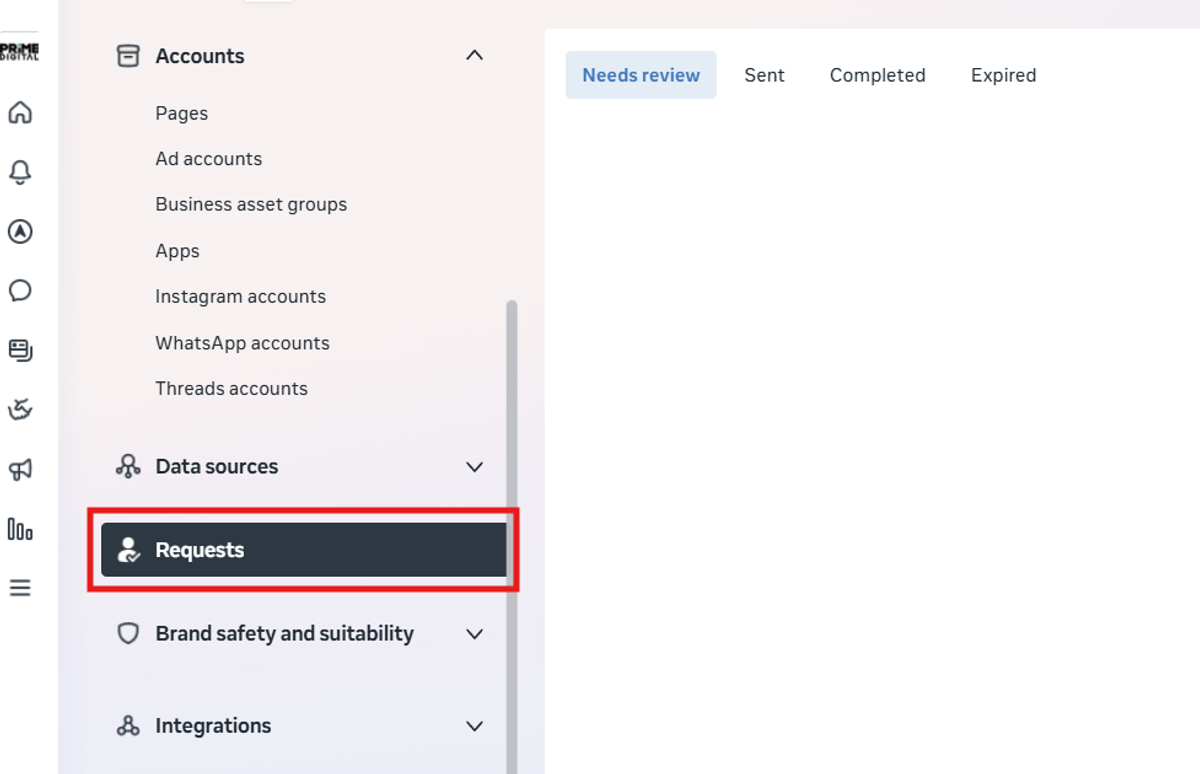
- In Business settings, go to Requests in the left sidebar (you'll also receive a notification and email).
- Under Received, find the request from Prime Digital and click Approve.
Step 3 — Assign your assets to Prime Digital
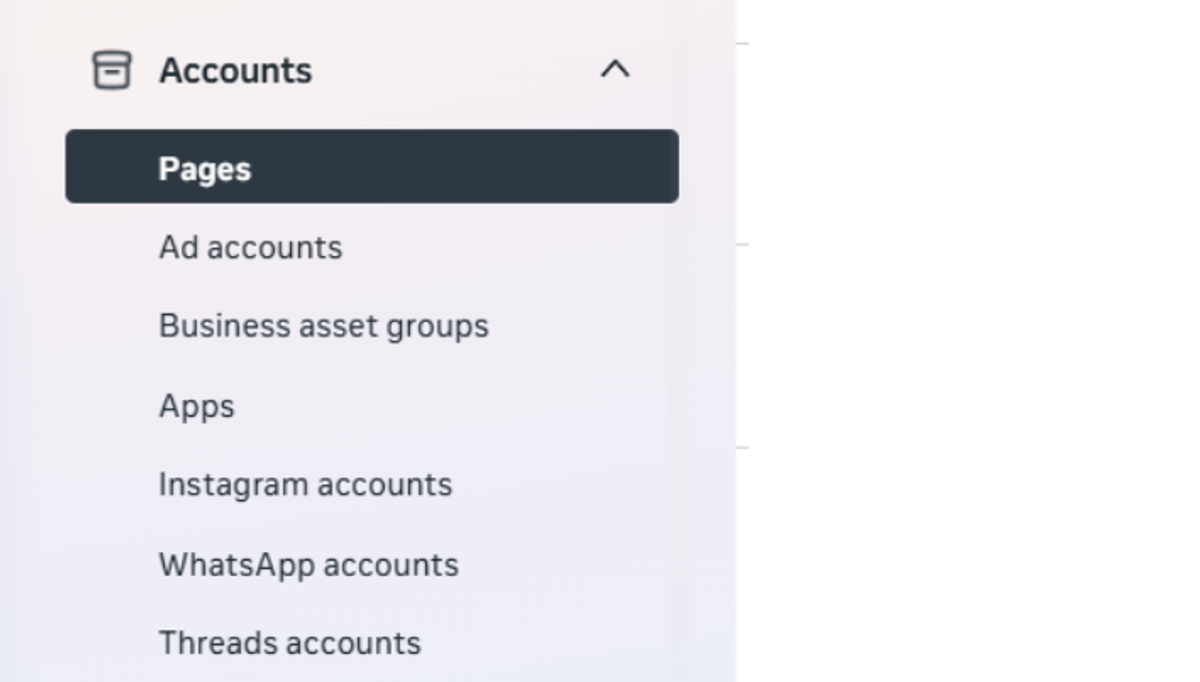
- In Business settings, go to Users → Partners and select Prime Digital.
- Click Assign assets.
- Assign each of the following, granting Full control where the option appears:
- Ad accounts
- Pages
- Instagram accounts (the account must already be connected to your portfolio — if it isn't, add it under Accounts → Instagram accounts first)
Full control lets us set up tracking and campaign structure properly without repeated access requests.
Step 4 — Share your pixel
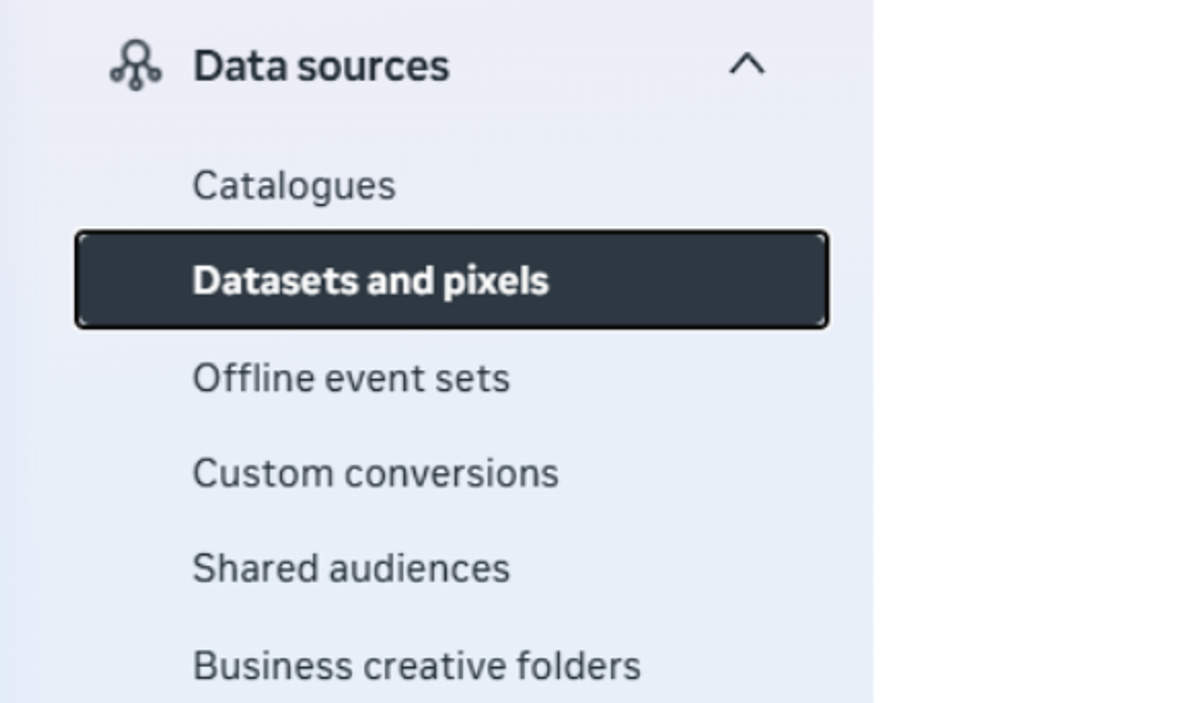
- In Business settings, go to Data sources → Datasets in the left sidebar.
- Select your active pixel/dataset, click Assign partners, choose Prime Digital, and grant Manage (full control).
That's it. Once assets are assigned, we'll confirm on our side that everything has come through and flag anything that's missing.
Stuck on any step? Reply to your account manager and we'll jump on a quick screen-share. (Note: if your Page is Meta Verified, Meta sometimes blocks asset assignment — if you hit an "Unable to assign assets" error, let us know and we'll walk you through the workaround.)